Bulk Download
Download every document from your DocQ instance as zip files, using the Bulk Download portal at download.docq.app.
Bulk Download saves every document in your DocQ instance to your computer in one run. It fetches your documents in batches of 10 and saves each batch as a .zip file, so a full export is a series of downloads rather than one very large file.
The portal lives at download.docq.app. Files go straight from your DocQ instance to your browser -- they never pass through the portal itself.
Before You Start
You will need:
- Access to the portal. DocQ enables access per email domain. If your company has not been set up yet, contact support@docq.app with the email domain your team uses (for example,
northwind.com). - An admin account on your DocQ instance, with the same email you sign in with. The portal only downloads from instances where your email belongs to an active admin user -- see Access Check.
- An API token from that instance.
- A desktop browser -- Chrome, Edge, Firefox, or Safari -- and enough free disk space for all of your documents.
Info
Access matches your email domain exactly. If your team uses a subdomain such as jane@us.northwind.com, mention it when you contact support so it can be enabled too.
Step 1: Sign In
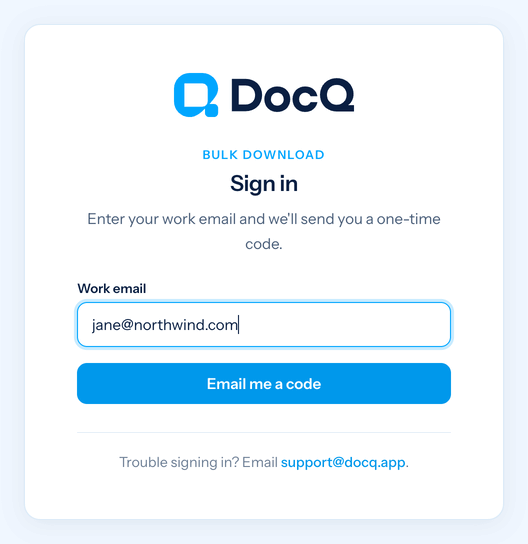
Go to download.docq.app, enter your work email, and click Email me a code.
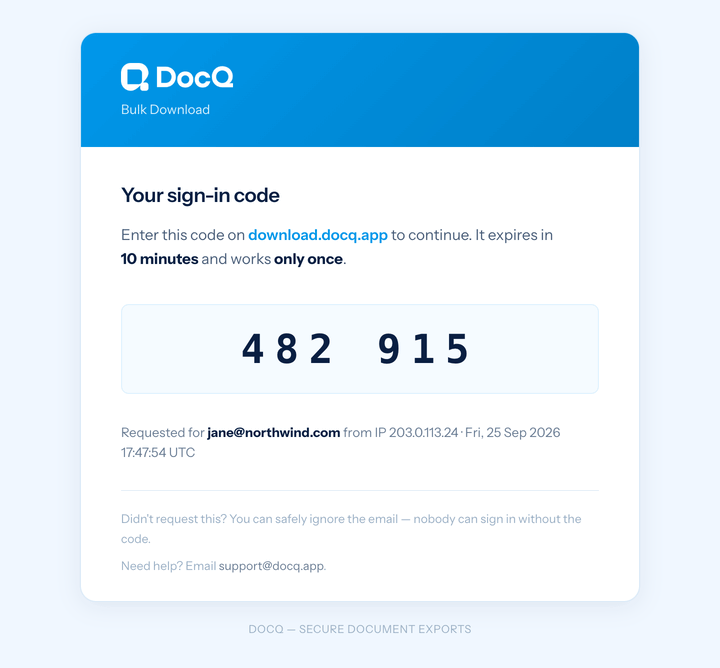
You will receive an email from DocQ <noreply@alerts.docq.app> with a 6-digit code.
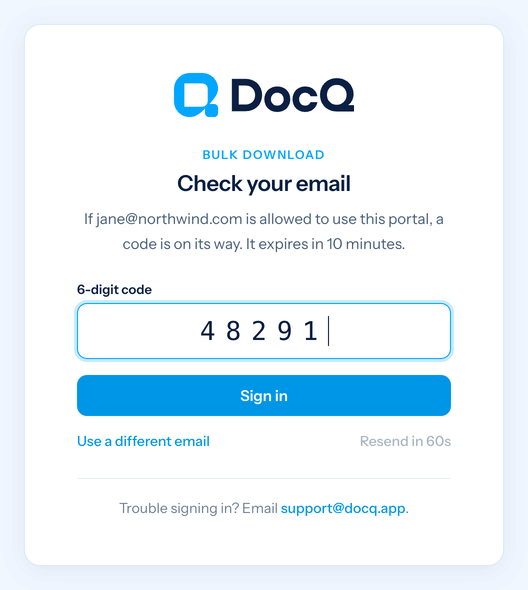
Enter the code on the portal. The page signs you in as soon as all six digits are entered.
A few things to know about sign-in codes:
| Rule | Details |
|---|---|
| Expiry | A code works for 10 minutes and can be used only once. |
| Wrong codes | After 5 incorrect attempts the code stops working -- request a new one. |
| Resending | You can request a new code after 60 seconds. Only the newest code works. |
| Staying signed in | You stay signed in for 12 hours, or until you click Sign out. |
Info
For privacy, the portal shows the same "a code is on its way" message whether or not your email is allowed to sign in. If no email arrives within a few minutes, check your spam folder, then contact support.
Step 2: Get an API Token
The portal reads your documents through the DocQ API, so it needs an API token from your instance. The easiest option is to create your own; a token created by another admin on the same instance also works.
- Sign in to your DocQ instance (for example,
northwind.docq.app) as an admin user. - Go to Settings > Plugins > DocQ integration token.
- Generate a token and copy it.
Warning
Treat the API token like a password: it gives access to all documents in your instance. The portal uses it only inside your browser to talk to your DocQ instance -- it is never sent to or stored by the portal. Don't share it by email or chat.
Step 3: Download Your Documents
Fill in the form and click Download all documents.
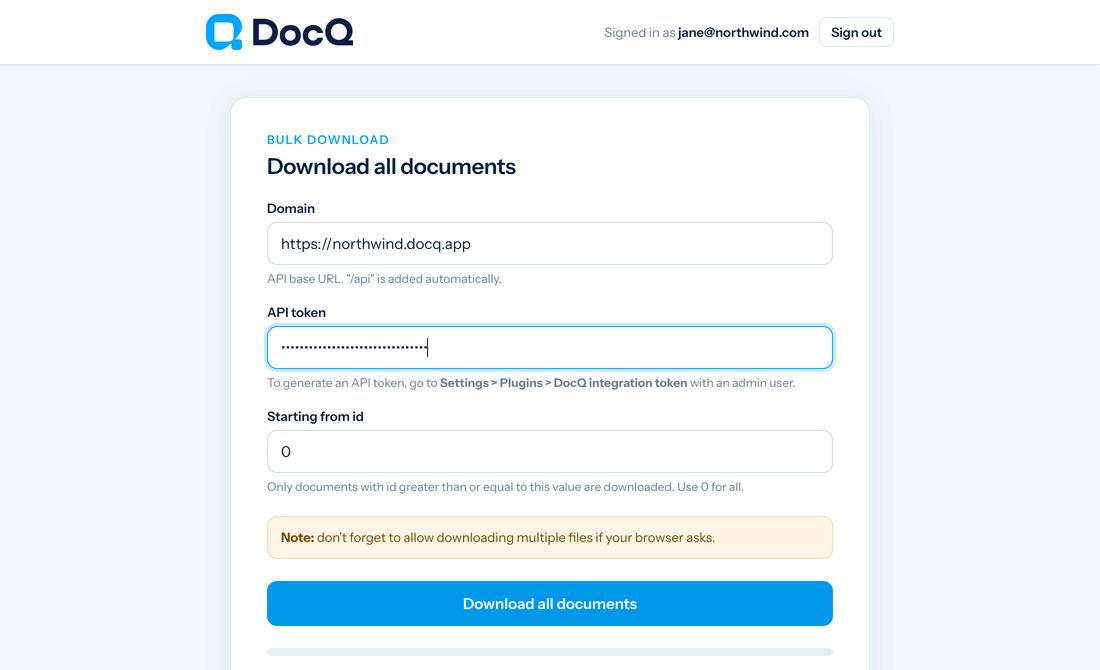
| Field | What to enter |
|---|---|
| Domain | Your DocQ address, e.g. https://northwind.docq.app. https:// and /api are added automatically if you leave them out. |
| API token | The token from Step 2. |
| Starting from id | 0 to download everything. Use a higher number to skip documents you already have -- see Resuming a Download. |
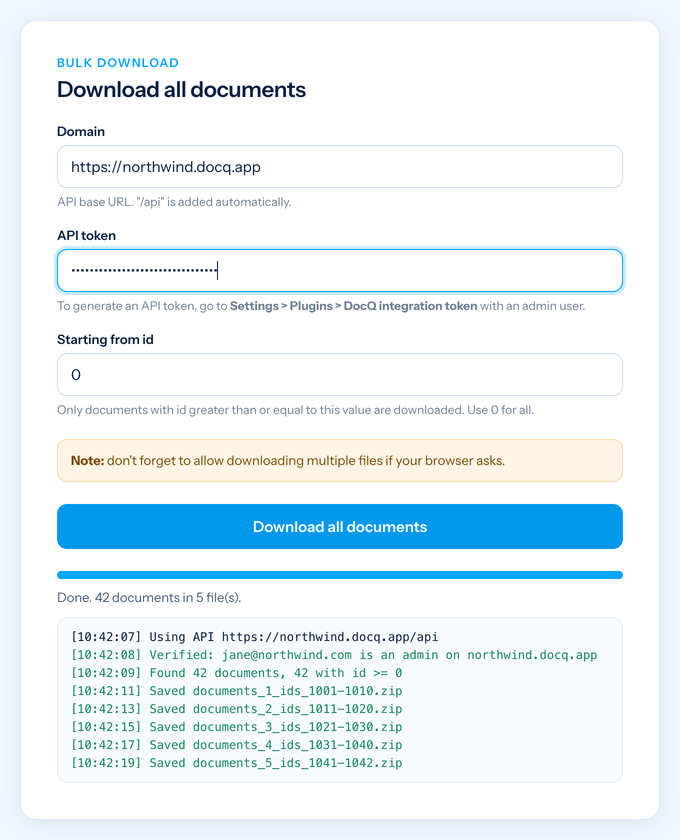
The portal first checks your access, then lists your documents and saves one zip file per batch of 10, pausing a second between files so the browser doesn't drop any. Keep the tab open until the status line reads Done.
Warning
The first time, your browser will ask whether to allow this site to download multiple files. Click Allow -- otherwise only the first file is saved.
Access Check
Before anything is downloaded, the portal asks your DocQ instance whether the email you signed in with belongs to an active admin user there. If it does, the log shows a line like Verified: jane@northwind.com is an admin on northwind.docq.app and the download continues. If not, the download is blocked and nothing is saved.
| Your situation | Result |
|---|---|
| You use your own API token and you're an admin | Allowed |
| You use a token another admin created, and you're an admin too | Allowed |
| Your email isn't a user on that instance, or the user is inactive | Blocked |
| You're a user on that instance but not in an admin group | Blocked |
When the check fails, the status line says the download was blocked, and the log explains why and what to do next:
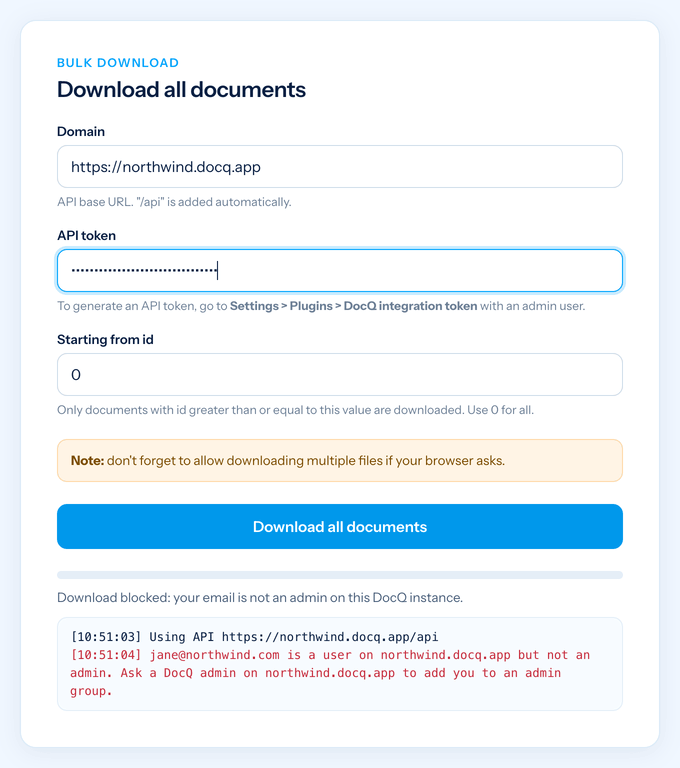
The check uses the same API token and runs in your browser, like the download itself.
What You Get
Files are saved to your browser's usual downloads folder, numbered in order and named after the document IDs they contain:
| File name | Contains |
|---|---|
documents_1_ids_1001-1010.zip | Documents 1001 to 1010 |
documents_5_ids_1041-1042.zip | The last, smaller batch |
documents_7_id_1063_Invoice.pdf | A batch with a single document is saved as the file itself, not a zip |
Documents are downloaded in ID order, oldest first.
Resuming a Download
If a download stops part-way -- you closed the tab, lost your connection, or signed out -- you don't need to start over.
- Find the last zip file that was saved, for example
documents_3_ids_1021-1030.zip. - Take the last ID in its name (1030) and add 1.
- Run the download again with Starting from id set to 1031.
The portal skips everything below that ID and downloads only the rest:
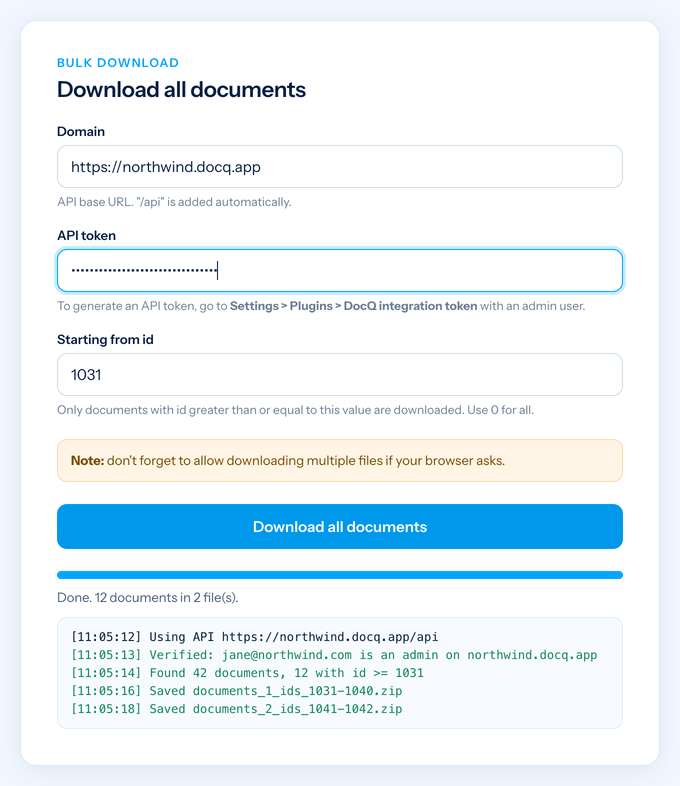
Numbering of the new files starts from 1 again (documents_1_ids_1031-1040.zip), but the IDs in each file name tell you exactly which documents it contains.
Troubleshooting
| Problem | What to do |
|---|---|
| The sign-in code never arrives | Check your spam folder. If it isn't there, your email domain may not be enabled yet -- contact support@docq.app. |
| "Too many code requests" | Codes are limited per email and per network each hour. Wait an hour and try again. |
| "Could not reach …" | Check the Domain field for typos and that you can open your DocQ instance in the same browser. |
| "The API token was rejected" or "Listing failed (HTTP 401)" | The API token is wrong, disabled, or from a different instance. Generate a new one on the instance you entered (Step 2). |
| "… is not a user on …" | The email you signed in with has no active user on that DocQ instance. Sign in to the portal with the email of your DocQ admin account. |
| "… is a user on … but not an admin" | Ask an admin on your DocQ instance to add you to an admin group, then try again. |
| "This token belongs to …, who can't look up users" | The token was created by someone who isn't an admin. Use your own API token, or one created by an admin. |
| A batch failed | The log lists the IDs of any failed batch. Run the download again with Starting from id set to the first failed ID. |
| Only one file was saved | The browser blocked multiple downloads. Allow them for download.docq.app in your browser's site settings and run again. |
Security and Privacy
- Documents travel directly between your DocQ instance and your browser over HTTPS.
- Your API token stays in your browser and is not stored anywhere by the portal.
- Downloads only start after your DocQ instance confirms that your sign-in email is an active admin there.
- DocQ keeps an audit record of sign-ins, access checks, and download runs (who, when, which instance, whose token, and how many documents) -- never the token itself or the contents of your files.
- When you're done, click Sign out.