Troubleshooting
Resolve invalid steps, unreachable paths, and common workflow validation errors.
DocQ validates workflows before they can be saved and activated. A workflow must meet several requirements to be considered valid. This page covers the most common validation errors and how to resolve them.
Requirements for Saving a Workflow
A workflow can only be saved when all of the following conditions are met:
- No incomplete steps — every step must have all required configuration filled in.
- Actions assigned to other steps — each step (except End) must have its approve and reject actions pointing to valid next steps.
- All steps reachable from Start — every step on the canvas must be accessible through at least one path originating from the Start step.
If any of these conditions are not met, DocQ will prevent the workflow from being saved and highlight the issues on the canvas.
Invalid Steps
Invalid steps are indicated by a red border on the canvas. A step becomes invalid when it is missing required configuration.
Steps Without a Next Step
All steps except the End step must have a default next step configured. Specifically:
- Standard steps require at least a default next step selected in the Approve step dropdown.
- Action steps (steps that support both approve and reject outcomes) require both an Approve step and a Reject step to be selected.
- Steps with conditional routing require at least one condition to have a target step selected for at least one outcome (approve or reject).
Info
Even when conditions cover every possible scenario, the default next step is still required as a fallback. See Conditions & Routing for details.
Steps with Missing Required Information
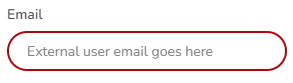
Some step types require specific configuration fields to be completed. When a required field is empty, the step is highlighted with a red border in the step settings panel. Common examples include:
- A Person step without a user or external user assigned.
- A Department step without a department selected.
- A Web-Service step without a URL specified.
- A Split step without a page range or target workflow defined.
Open the step settings and fill in all highlighted fields to resolve the error.
Steps Unreachable from Start
Every step on the canvas must be linked to the Start step through at least one path. A step is considered unreachable if there is no chain of connections leading from Start to that step.
This validation ensures that no orphaned steps exist in the workflow. Multiple paths to the same step are allowed — the requirement is simply that at least one valid path exists.
To resolve this issue:
- Identify the unreachable step(s) on the canvas.
- Create a connection from an existing step that is reachable from Start.
- Alternatively, if the step is no longer needed, remove it from the canvas.
Warning
Unreachable steps can occur when you delete a connection between two steps or remove an intermediate step. Always verify the workflow's connectivity after making structural changes.
Deleting a Workflow
A workflow can only be deleted if none of the following are currently using it:
- Document templates — no template is configured to use this workflow.
- Active documents — no documents are currently in progress within this workflow.
- Other workflows — no other workflow references this one via a Workflow step (sub-workflow).
To delete a workflow:
- From the Workflows list, click the three dots menu next to the workflow name and select Delete workflow.
- Alternatively, open the workflow editor and click the Delete button in the settings panel.
If the workflow is in use, DocQ will display a message indicating what is referencing it. You must remove those references before the workflow can be deleted.
Next Steps
- Creating Workflows — review canvas navigation and step placement.
- Step Types — check the required configuration for each step type.
- Conditions & Routing — ensure conditional routing is properly configured.