This is the long version of the setup in the main story. If you want to wire an AI agent into your own iPhone, this is everything I did, including the parts that went wrong. Nothing here is jailbreaking. It's the same tooling app developers use to run automated UI tests.
The shape of it
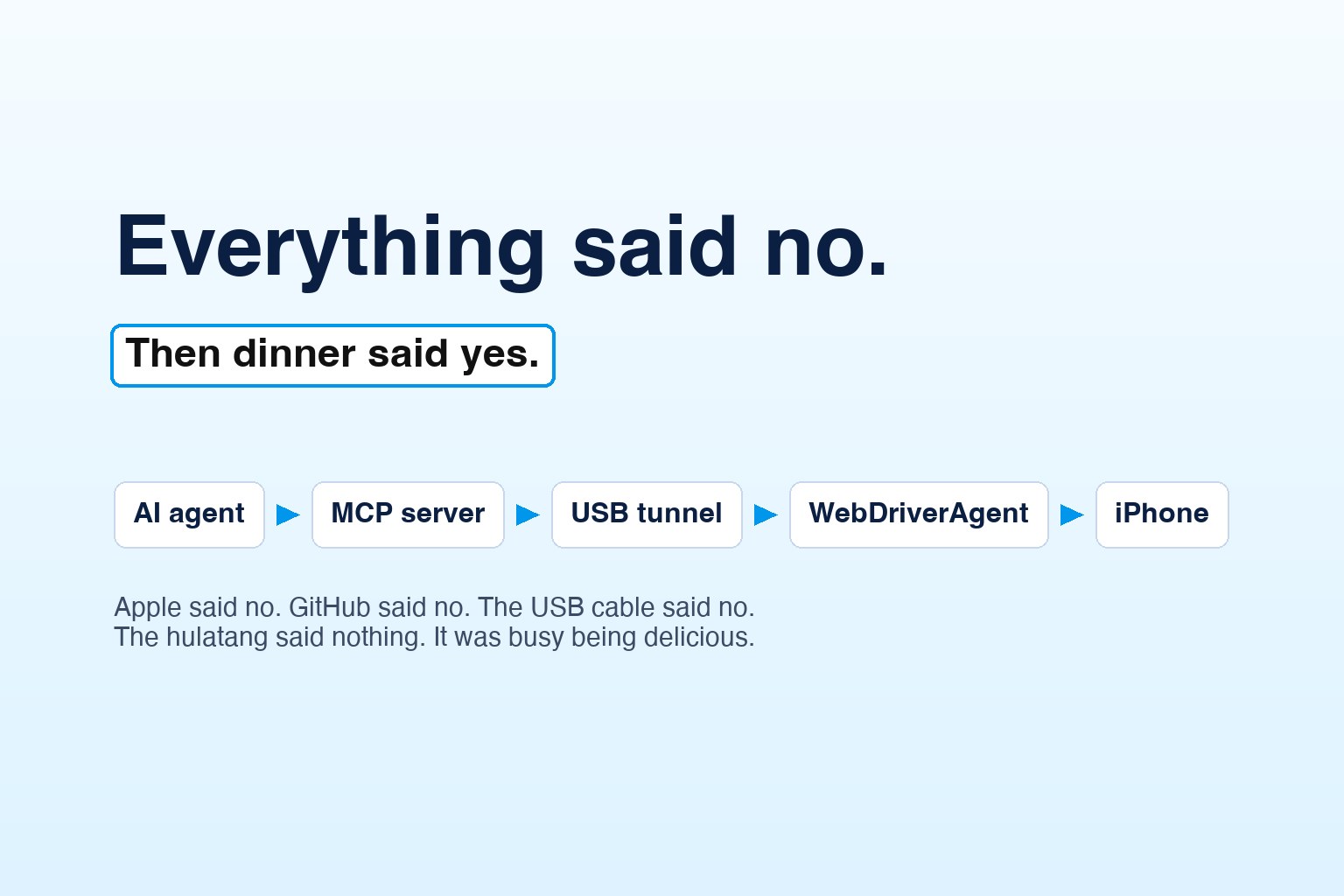
Five pieces and a cable
- WebDriverAgent is an open-source test runner, the one Appium uses. It runs on the phone as a UI test and exposes a small HTTP API: screenshot, accessibility tree, tap, swipe, type. It also streams the screen as MJPEG video on port 9100.
- go-ios does two jobs. It opens the tunnel that iOS 17 and later need for developer services, and it forwards the phone's ports to the Mac, so WebDriverAgent shows up at
localhost:8100. - mobile-mcp is an MCP server. It turns WebDriverAgent's API into tools an AI agent can call: "list elements on screen", "tap at x,y", "type this".
- Small Python helpers call WebDriverAgent's API directly for the jobs the MCP tools are slow at, like finding a button by its label and tapping its live position.
- Xcode builds and signs WebDriverAgent once. After that it only starts it.
| Piece | What I used |
|---|---|
| Laptop | MacBook, Apple Silicon, macOS 26 |
| Phone | iPhone 17 Pro, iOS 27.2 (402 × 874 points, 1206 × 2622 pixels) |
| Xcode | 27.2, downloaded as a .xip from Apple's developer site |
| WebDriverAgent | 16.18.5, from npm appium-webdriveragent |
| go-ios | 1.0.188, from npm |
| mobile-mcp | 1.0.17, legacy WebDriverAgent mode, helper stubbed out |
| Ports | 8100 WebDriverAgent API · 9100 live video · 8200 translation page · 60105 go-ios tunnel |
| Signing | Free Personal Team, a second Apple ID, 7-day expiry |
Everything says no
Three walls, three ladders
1. Apple: "maximum number of registered devices"
A free Apple developer account can sign apps for your own phone, but it quietly caps how many devices it has ever registered. Mine had hit the cap years ago, and there is no reset. Xcode simply said: Your development team has reached the maximum number of registered iPhone devices. The fix was a second Apple ID, a souvenir from moving countries. Sign into Xcode with it, pick its Personal Team, set a unique bundle ID for the runner, done.
Two more phone-side steps: turn on Developer Mode and Enable UI Automation, and on first launch trust the developer certificate in Settings › General › VPN & Device Management. Free signing expires after 7 days, so the start script has a resign option that rebuilds and re-signs in one go.
2. GitHub: timeouts from a Shanghai hotel
Cloning WebDriverAgent from GitHub timed out again and again. The same source ships on npm as appium-webdriveragent, and China has fast npm mirrors:
npm pack appium-webdriveragent --registry=https://registry.npmmirror.com
npm install -g go-ios @mobilenext/mobile-mcp --registry=https://registry.npmmirror.com
Lesson: in China, mirrors beat GitHub. Check whether your dependency also lives on npm or PyPI before you fight the network.
3. USB: the case of the vanishing iPhone
On a Mac, every app that talks to an iPhone over USB goes through one system service, usbmuxd. Xcode, Finder and go-ios all share it. Recent versions of mobile-mcp no longer drive iOS through WebDriverAgent by default. They use their own helper, mobilecli, which starts a background daemon. On this setup, the moment that daemon started, the iPhone dropped out of usbmuxd. The go-ios tunnel logged "stopping tunnel" in the same second, WebDriverAgent answered "connection reset", and only a physical replug brought the phone back. Same pattern, twice.
The fix had two parts. First, MOBILEMCP_LEGACY_ROBOT=1 puts mobile-mcp back on WebDriverAgent plus go-ios, which were already working. Second, even in legacy mode mobile-mcp runs mobilecli once at startup to check its version and list simulators. Pointing MOBILECLI_PATH at a stand-in means the real daemon never runs:
#!/bin/sh
# Stand-in for mobile-mcp's bundled "mobilecli".
# The real one starts a daemon that knocks the iPhone off usbmuxd.
case "$1" in
  --version) echo "mobilecli version 1.0.23" ;;
  *) echo '{"status":"ok","data":{"devices":[]}}' ;;
esac
Eight lines, and the phone stayed put. Why the daemon did this was never proven, only that it reliably did. If you're travelling, pin your tool versions. A smarter new default can break a setup that worked yesterday.
Later that night came three more drops with a different pattern. Each happened during a full accessibility-tree read on a heavy Meituan page, never during a screenshot, tap or swipe. Working theory: a huge accessibility snapshot of a busy page knocks the connection over. Workaround: on those pages, navigate with screenshots and taps only.
One command
The start script
Once it worked, I wanted it to keep working without remembering five commands. start.sh checks the phone is on USB, starts the tunnel and the port forwards, starts WebDriverAgent with xcodebuild test-without-building, waits for it to report ready, starts the translation page, and turns the common failures into plain English:
# 1. go-ios tunnel (iOS 17+)
ios tunnel start --userspace
# 2. Port forwards: 8100 = WebDriverAgent API, 9100 = live video
ios forward 8100 8100 ; ios forward 9100 9100
# 3. WebDriverAgent on the phone (keep it unlocked)
xcodebuild -project WebDriverAgent/WebDriverAgent.xcodeproj \
  -scheme WebDriverAgentRunner -destination "id=$UDID" test-without-building
# 4. Ready?
curl -s localhost:8100/status   # "ready" : true
When WebDriverAgent fails, the script greps the log for the usual suspects and prints them: Developer App Certificate is not trusted, device is locked, maximum number of registered devices, expired. The most common one by far: the phone was locked. Keep it unlocked, or turn off Auto-Lock for the session.
The big lesson
Read the tree, not the pixels
My first instinct was to work from screenshots: look at the picture, pick coordinates, tap. That broke almost immediately. The agent was looking at a screenshot resized to 690 pixels wide, while the phone's touch coordinates are in points, 402 wide. One unconverted tap landed on the wrong icon and opened a ride-hailing app. (It backed out without accepting anything.)
From then on, it used the accessibility tree: every label and button on screen, with its live position. Find the element by its label, ask for its rectangle, tap the centre:
def tap_label(predicate):
    els = post(f"/session/{sid}/elements",
               {"using": "predicate string", "value": predicate})["value"]
    el = list(els[0].values())[0]
    r = get(f"/session/{sid}/element/{el}/rect")["value"]
    post(f"/session/{sid}/wda/tap",
         {"x": r["x"] + r["width"] / 2, "y": r["y"] + r["height"] / 2})

tap_label("label == '加入购物车'")   # Add to cart
A few more rules that came out of a night in Chinese super-apps:
- Re-check before anything that matters. Pop-ups (VIP upgrades, rating prompts, ads), lazy-loading lists and keyboards all move the layout under you. Read the screen again right before a tap that counts.
- Read text fields back before Send. In one chat the keyboard shifted the Send button onto the delete key, so messages kept losing their last character. Read the box, close the keyboard, then tap Send.
- Flick, don't drag. Slow drags were read as long presses and nothing scrolled. A 0.1-second flick works.
- Heavy pages: screenshots plus taps. See the USB drops above.
First contact
Hello world
The first test, before any food: ask WebDriverAgent if it's there ("ready": true), take a screenshot, find the Settings icon by label and tap it, go home, swipe between pages. Fun detail from that first Settings screen: the top app by battery use was Meituan. That tells you everything about this trip.
Back to the story: I Can't Read Chinese, So I Gave My iPhone to an AI and It Ordered Dinner
Anuj Sehgal · CEO, DocQ
He builds AI agents for documents and business processes, and occasionally for dinner. Say hello on LinkedIn.