eSignatures in Templates
Add signature fields, date stamps, and file attachments to your document templates.
You can require an electronic signature directly through a template. When a user submits a form linked to the template, their signature is automatically inserted into the generated document at the designated positions. This is particularly useful for forms shared with external users who need to sign a document as part of the submission process.
For a broader overview of how e-signatures work across DocQ, see eSignatures Overview.
Adding Signature Fields to PDF Templates
To add a signature field to a PDF template:
- Click +New signature.
- Select a Signature type from the dropdown (Signature, Initials, or Date stamp).
- Click on the document preview to position the signature field.
- To add the same signature in multiple locations, click + to add additional positions.
Signature fields are listed under the SIGNATURES section in the template settings panel.
Naming Rules
Signature field names follow the same rules as variable names: each name must be unique, cannot start with a number, and only underscores are allowed as special characters.
Scale Setting
For PDF templates, you can adjust the scale of the signature field to control how large or small the signature appears relative to the document. This helps ensure the signature fits neatly within the designated space on the page.
Adding Signature Fields to DOCX Templates
For DOCX templates, add a signature through the variable system:
- Add a new variable to the template.
- Set the variable type to Signature.
- Select the appropriate subtype: Signature, Initials, or Date stamp.
The signature variable behaves like any other variable and appears in the template settings alongside other configured variables.
Date Stamps
Date stamps automatically record the date when a signature is applied to the document. To add a date stamp:
- Follow the same process as adding a signature field.
- In the Signature type dropdown, select Date instead of Signature or Initials.
The date stamp is inserted at the designated position when the signer completes their signature.
File Attachments
Templates can include attachment fields that allow form respondents to upload files alongside their submission.
To add an attachment field:
- Click +New attachment.
- Open the attachment for editing and configure the following settings:
| Setting | Description |
|---|---|
| Variable name | The internal identifier for the attachment field. |
| Label | The display name shown to the user on the form. |
| Mandatory | Toggle to require the attachment before the form can be submitted. |
| Order | Controls the display order when multiple attachment fields exist. |
| Store to database | When enabled, the uploaded file is saved to the database for later retrieval. |
| Hint | Tooltip text to guide the user on what file to upload. |
Supported File Types
Attachment fields accept the following file formats:
.pdf.png
Warning
When attachment fields are added to a DOCX template, the template is automatically converted to PDF format. Keep this in mind if you need to preserve the .docx format for other purposes.
Downloading Templates
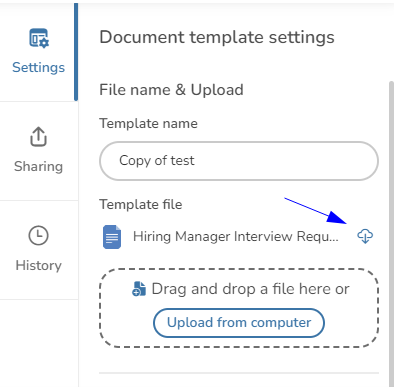
To download a copy of the template file:
- Navigate to the template list.
- Click the pencil icon to open the template editor.
- Go to Template settings.
- Click the download button.
Next Steps
- Variables -- Configure all variable types including signature variables
- Forms -- Share templates as forms with signature collection
- Signature Templates -- Predefine signature positions for use in workflows and sharing