Login & Logout
Sign in to DocQ, manage your password, and understand account lockout rules.
How to Log In
Navigate to your company's DocQ domain. This is typically your company abbreviation followed by docq.app — for example, if your company is called Acme, your DocQ instance would be at acme.docq.app.
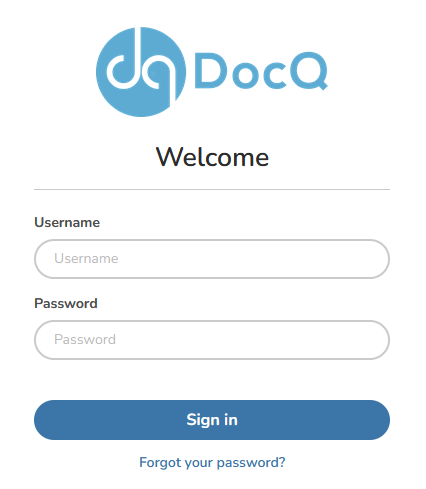
Enter your credentials in the Username and Password fields. Your username is provided by a DocQ administrator when your account is created. You may also receive a password reset email that allows you to set a new password; however, the username must always be provided by an admin for security reasons.
Defining or Changing Your Password
To log in, you must have a valid username and password. These are set when your DocQ user account is created.
The password can be defined by the admin during account creation, or the admin can leave it to the new user to define their own password using the link in the notification email they receive.
If you are an admin and need to create a new user, see Managing Users.
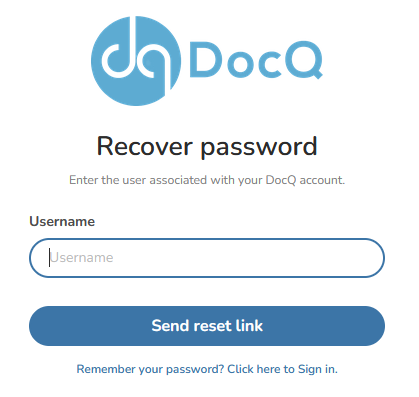
If you forgot your password, click the Forgot Password link on the login page. Enter your username and click Reset my password. A password reset email will be sent to the email address associated with your DocQ profile.
Warning
After 10 consecutive failed login attempts, your account will be locked. You must define a new password through the reset process described above to regain access.
After logging in, you can change your password at any time by editing your profile.
Password Requirements
DocQ enforces robust password standards in compliance with NIST 800-63B guidelines:
- Minimum of 8 characters and maximum of 64 characters
- Must mix lowercase and uppercase letters, numbers, and special characters
- You cannot reuse any of your last three passwords
How to Log Out
To log out of DocQ, click on your username in the top-right corner of the screen to open the user menu.
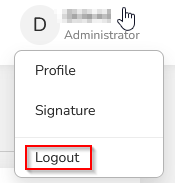
Click the Logout button. You will be logged out and redirected to the login screen.