Uploading Documents
Upload single or bulk documents to DocQ and assign them to workflows and groups.
DocQ lets you upload documents individually or in bulk, assigning each one to a workflow and document group during the upload process.
Uploading a Single Document
To upload a document:
- Navigate to Documents in the left sidebar.
- Click the +Add Document(s) button.
- Select Upload file(s).
- Click Upload from computer to open a file picker, or drag and drop a file into the upload area.
Supported Formats
The following file types are accepted:
.pdf-- Portable Document Format.docx-- Microsoft Word.pptx-- Microsoft PowerPoint.png-- Image files
Info
For details on which formats support in-browser editing, annotations, and other features, see Documents Overview.
Upload Settings
After selecting a file, you will see the upload settings panel where you configure how the document enters DocQ.
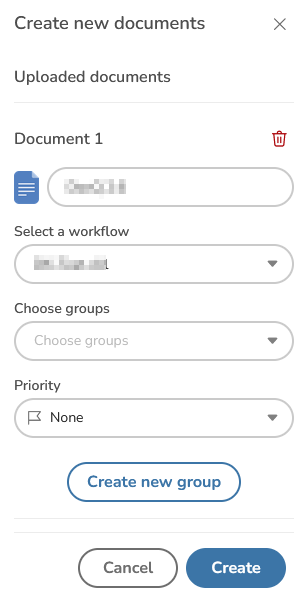
Workflow
Use the Workflow dropdown to assign the document to a specific workflow. The document will begin processing through the selected workflow immediately after upload.
Groups
Use the Groups dropdown to assign the document to one or more document groups for organization and filtering purposes.
If the group you need does not exist yet, click the Create new group button directly from the dropdown to create one on the fly.
Bulk Upload
DocQ supports uploading multiple documents at once. To perform a bulk upload:
- Navigate to Documents > +Add Document(s) > Upload file(s).
- Select multiple files from your computer, or drag and drop several files into the upload area.
- Each document appears as a separate entry in the upload list, with its own settings.
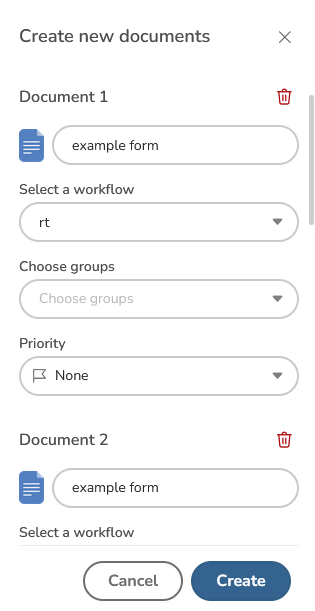
You can configure the Workflow and Groups independently for each document in the list. This allows you to route different files to different workflows in a single upload session.
Warning
Review the workflow and group assignments for each document before confirming a bulk upload. Once uploaded, documents immediately begin processing through their assigned workflows.
Next Steps
- Editing Documents -- Edit content, rename, update versions, and manage metadata
- Sharing Documents -- Share uploaded documents by email or for e-signatures
- Workflows Overview -- Learn how workflows process your documents